This content contains affiliate links — if you sign up through them, we may earn a commission. This does not affect our reviews. How we make money
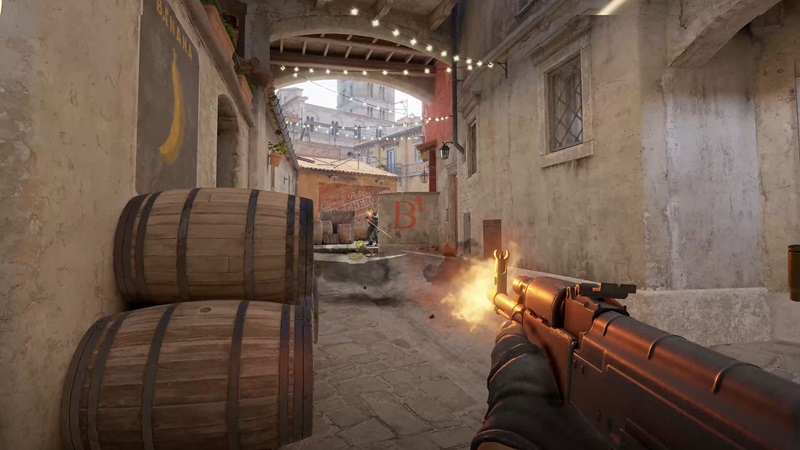
Screenshot from the game Counter Strike 2 (source: store.steampowered.com)
The popular shooter Counter Strike 2 offers a lot of fun on its own, but sometimes you need to customize the game to your liking. In the article below, you will find out how to use the developer console and how to adjust the game or server settings on the fly without having to search for options in the settings.
The process is simple, just go to the settings (Options) directly in the game and go to the Game tab. There, you need to find the line “Enable Developer Console” and change the value from No to Yes.
Common useful commands for every server
The developer console in CS2 is useful if you need to quickly change your basic settings or display additional game performance data on your computer. If the command shows a one, it means the feature is enabled, while zero means it’s disabled. By changing 1 to 0 (or vice versa), you can disable or enable any feature.
If you create your own server (for training, your own match, or a 1vs1 duel), you can use server admin commands to help set up the game to your liking.
sv_cheats 1
Enable changes to game settings (e.g., infinite ammo). Some commands require this command to be entered first.
sv_infinite_ammo 1
Infinite ammo
noclip
Allow flying across the entire map
god
Invincibility
mp_restartgame 1
Restart the game on the server
bot_kick all
Kick all bots from the server
bot_add t / bot_add ct
Add a bot to the Terrorist / Counter-Terrorist team
mp_freezetime 1
Set “freeze” time before the start of each round, i.e., buying time when movement and shooting are disabled
mp_warmup_end
End the warm-up round
mp_roundtime X
Set round time (replace X with a number, in minutes)
mp_free_armor 1
Enable Kevlar for everyone at the start of the round
mp_afterroundmoney X
Set the amount of money awarded after each round (replace X with a number)
mp_startmoney X
Set the starting amount of money at the beginning of the game (replace X with a number)
mp_buy_anywhere 1
Allow buying anywhere on the map
sv_alltalk 1
Allow communication between both teams
There are countless CS2 commands, but for the average player, it’s enough to know all the above-mentioned ones. They will allow you to quickly change graphics settings even during a match, and you can also adjust your own server settings.
Best bookmakers for betting on Counter-Strike
Frequently asked questions
1️⃣ Can all commands be used in competitive matches?
No, the game does not allow the use of “cheat” commands in competitive matches.
2️⃣ How do I open the developer console in the game?
The default setting to open the developer console is “;” (the button under ESC), but this can be changed in the Counter Strike 2 game settings.
3️⃣ How do I see my FPS in the game?
The command to display FPS directly in the game is “cl_showfps 1”.